Once a candidate completes the Authorization and Certification portion of their background check, they will be automatically rerouted to eScreen to schedule their drug screen. They will be able to choose a nearby facility to complete the screening.
Don't currently have background check services in your Hireology subscription? Click here to get started!
In this article we will cover:
Scheduling a Drug Screen
There are four steps candidates will need to complete in order to schedule a drug screen.
Step 1: Enter personal information
Step 1: Enter personal information
Candidates will only need to enter their first and last names since the drug screen is linked to the information entered for the background check.
Step 2: Search for a facility
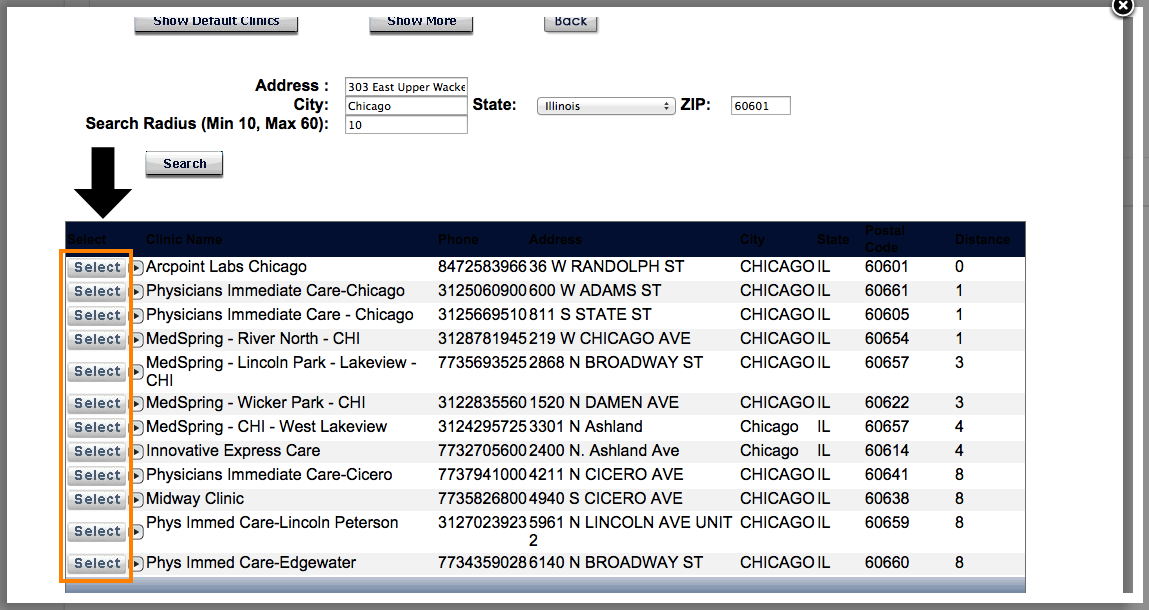
Candidates can enter their address or zip code and select a search radius to find nearby facilities within our drug testing partner's network. After clicking 'Search', the candidate will be able to see the exact clinic address, hours of operation, and whether or not the clinic requires an appointment. Note: Most clinics within eScreen do not require an appointment.
Step 3: Select a facility
Candidates can click 'Select' next to the facility that is most convenient for them.
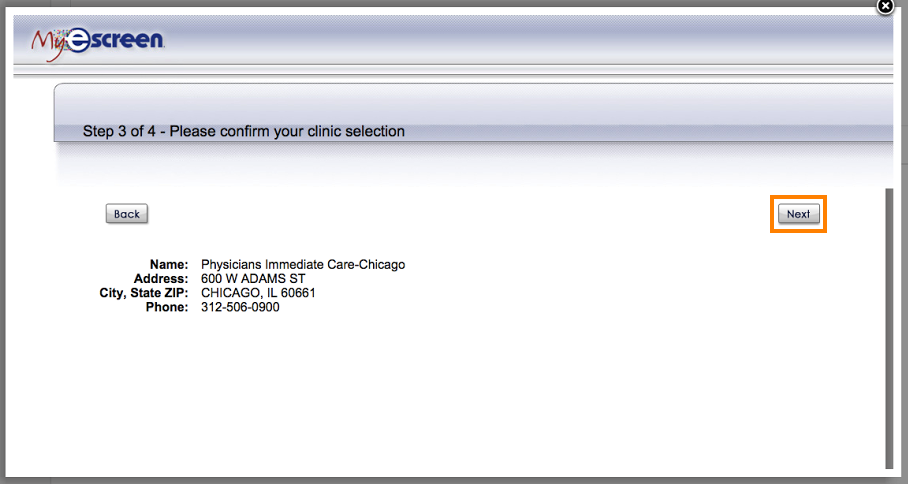
Candidates will need to confirm the site they have requested and click 'Next' to obtain their documentation in order to complete the process.
Step 4: Print or Email the ePassport
Candidates will have the option to print the ePassport they'll need to bring with them when they report for their drug screen. If they do not have access to a printer at that moment, they can choose to email the ePassport to themselves and print it at a later time.
Candidates will have the option to print the ePassport they'll need to bring with them when they report for their drug screen. If they do not have access to a printer at that moment, they can choose to email the ePassport to themselves and print it at a later time.
Note: If your candidate does not either print or email the drug screen ePassport before exiting this screen, they will not be able to log back into the system to obtain it.
After they have printed or emailed the passport, the background check will begin and you will be able to see the status updated in your Hireology account.
Resending the ePassport
If a candidate does not print or email the ePassport, they will not be able to retrieve it. If this occurs, the hiring manager can contact our support team by emailing support@hireology.com to have the document resent.
Comments
0 comments
Please sign in to leave a comment.